What is the difference between the three connection modes?
IoT mode
Direct
Bluetooth
Once connected, your device joins the internet. You can then control it from anywhere with the GTPOW+ app.
Which connection works with my device?
| Product | IoT mode | Bluetooth | Direct connection |
|---|---|---|---|
| RIVER 2 | - | ||
| RIVER 2 Max | - | ||
| RIVER 2 Pro | - | ||
| RIVER mini | - | ||
| RIVER | - | ||
| RIVER Max | - | ||
| RIVER Pro | - | ||
| DELTA mini | - | ||
| DELTA | - | - | - |
| DELTA 2 | - | ||
| DELTA Max | - | ||
| DELTA Pro | |||
| 48V Whole-Home Power System | - | ||
| Wave | - | ||
| Solar Tracker | - | - | |
| Smart Home System | - | ||
| Smart Generator | - | ||
| Dual-Fuel Smart Generator | - |
How to connect your device
IoT mode
In IoT mode, the device joins the internet once you finish the network setup in the app. After that, as long as your phone has internet access, you can monitor and control the device in real time from anywhere with the GTPOW+ app.
Network setup must be completed before the device can enter IoT mode. Follow these steps:
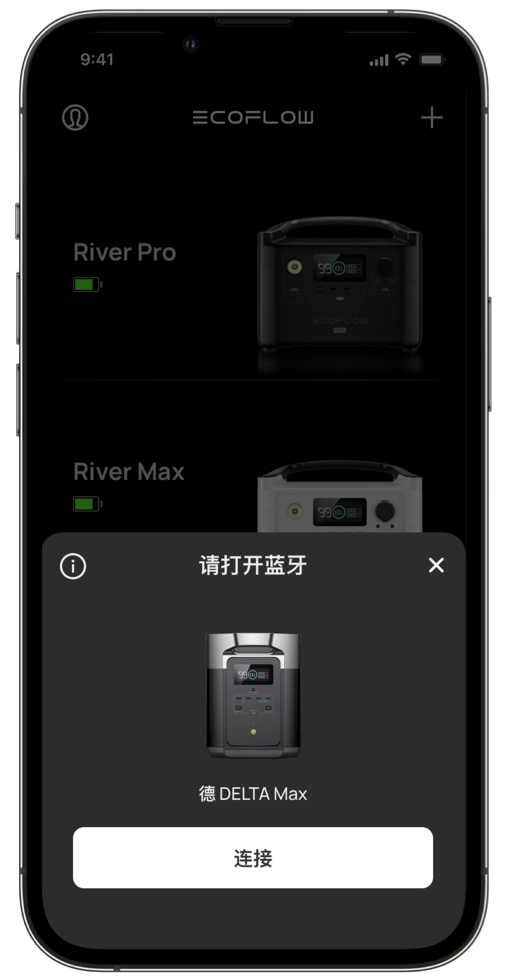
Step 1: When a new device is detected over Bluetooth, tap “Connect” in the new-device dialog.
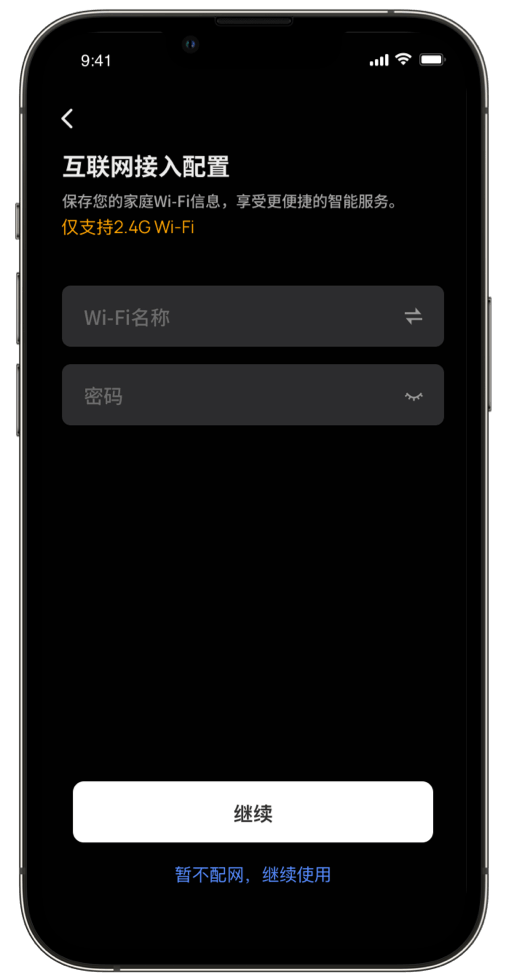
Step 2: On the internet settings page, choose the Wi-Fi network you want to use, enter the correct password, and tap “Continue”.
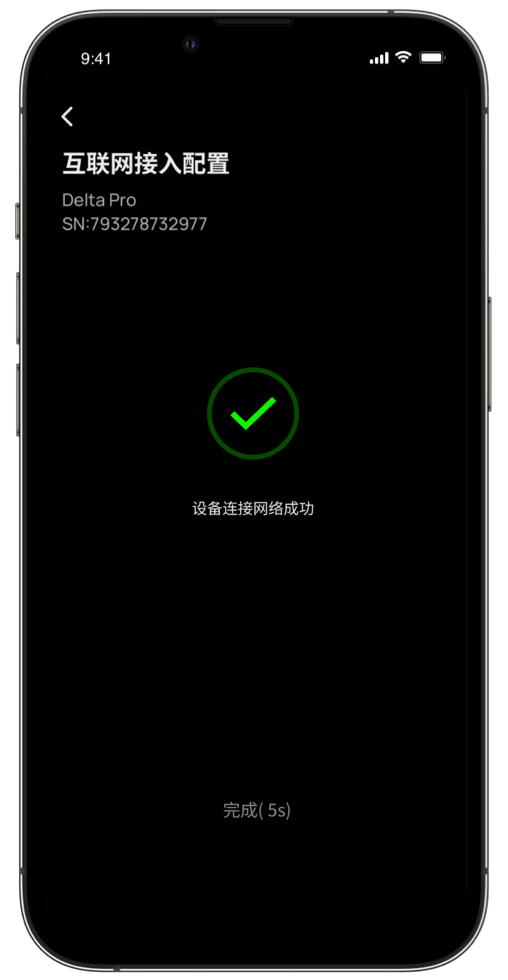
Step 3: Wait for the setup to finish. The connection is successful.
Note:
• Once the device is connected to the network, you can control it over your phone’s mobile network. If the device joins a Wi-Fi network that has no internet access, it will appear offline and cannot be controlled.
• These devices currently support 2.4GHz Wi-Fi only.
How to connect your device
Direct connection
In Wi-Fi direct mode your phone connects straight to the device, so you can view and control it in real time without any internet connection. This mode suits outdoor settings with no Wi-Fi network. Multiple users can connect to the device and control it at the same time.
Follow these steps to switch the device to Wi-Fi direct mode:
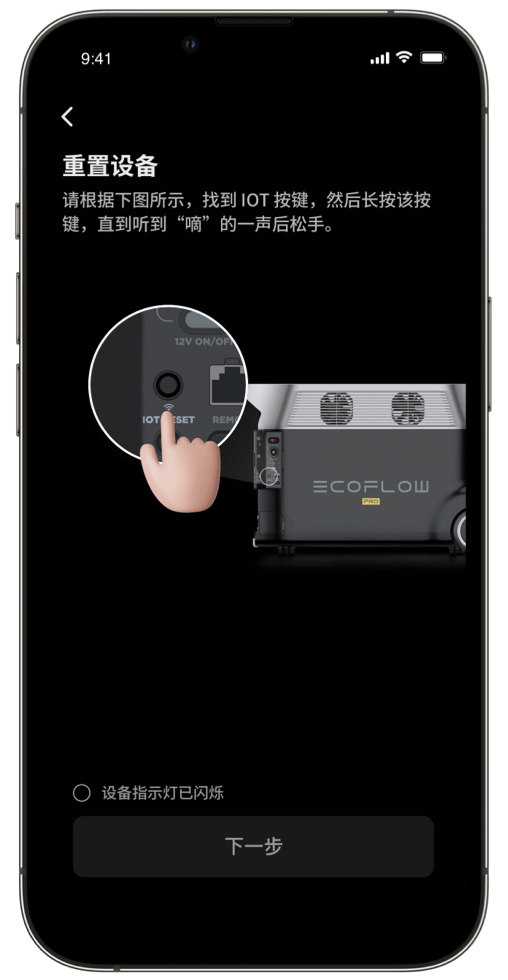
Step 1: Hold the “IOT RESET” button on the device for 3 seconds, then release it when you hear a beep. The Wi-Fi icon on the device screen starts flashing.
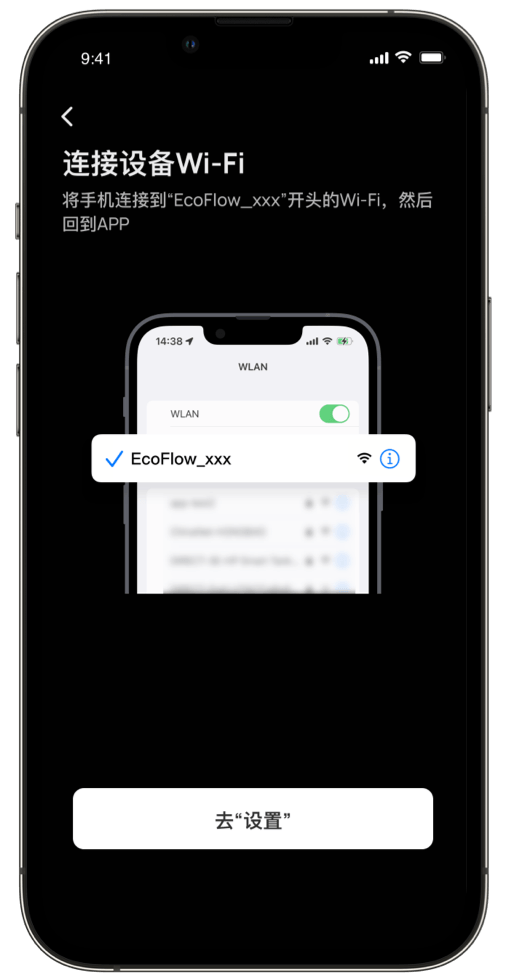
Step 2: Open Wi-Fi settings on your phone, find the network whose name starts with “GTPOW+”, and tap it to connect.
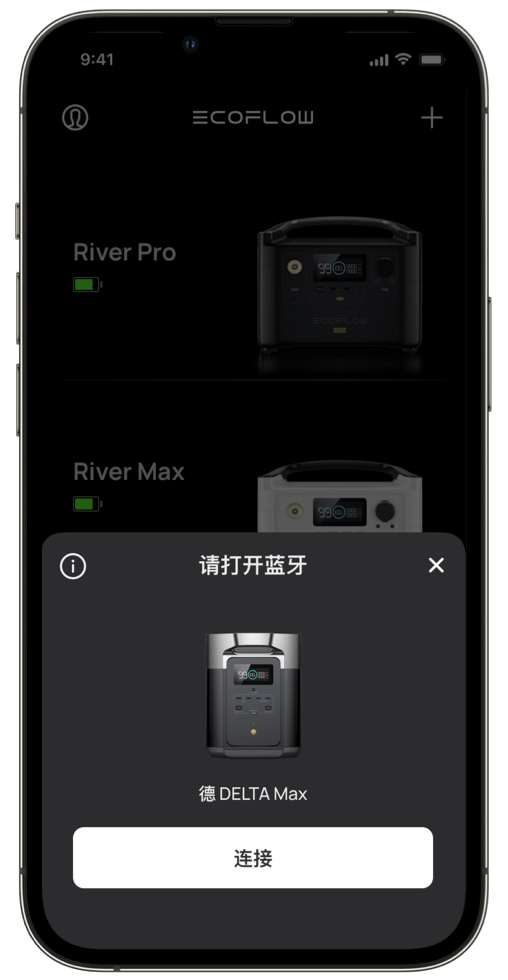
Step 3: Return to the GTPOW+ app. A pop-up will guide you through adding the new device to your device list.
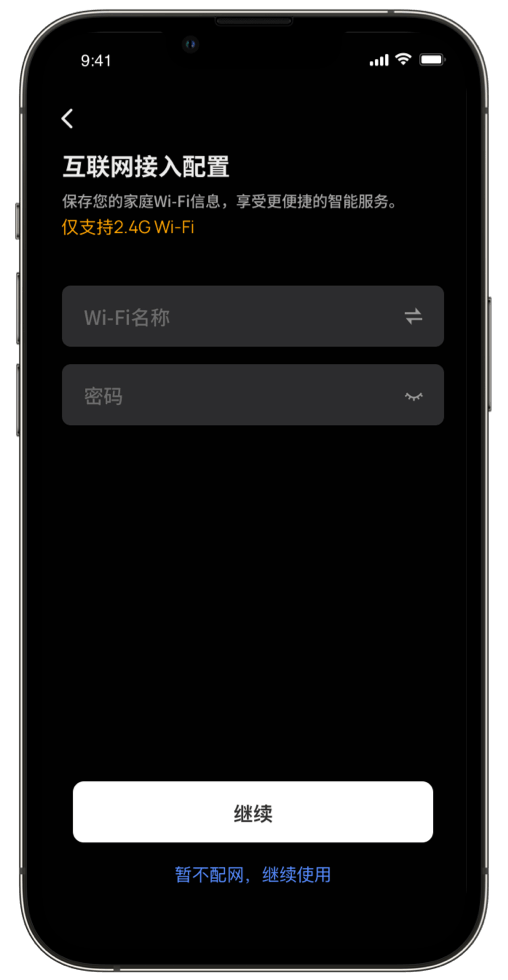
Step 4: Continue with IoT setup, or set it up later.
Note:
• In direct connection mode the Wi-Fi icon on the screen keeps flashing.
• In direct connection mode your phone joins a local Wi-Fi network with no internet access.
• For a stable connection, keep your phone as close to the device as possible. To switch to IoT mode, restart the device.
• If the device is in IoT mode, it returns to IoT mode every time it restarts. To enter direct connection mode, hold the IOT RESET button again.
How to connect your device
Bluetooth
In Bluetooth mode, devices that support Bluetooth (such as DELTA Pro and Solar Tracker) connect directly to the app after the network setup is complete, or connect to the internet.
With Bluetooth enabled on both your phone and the device, follow these steps to pair:
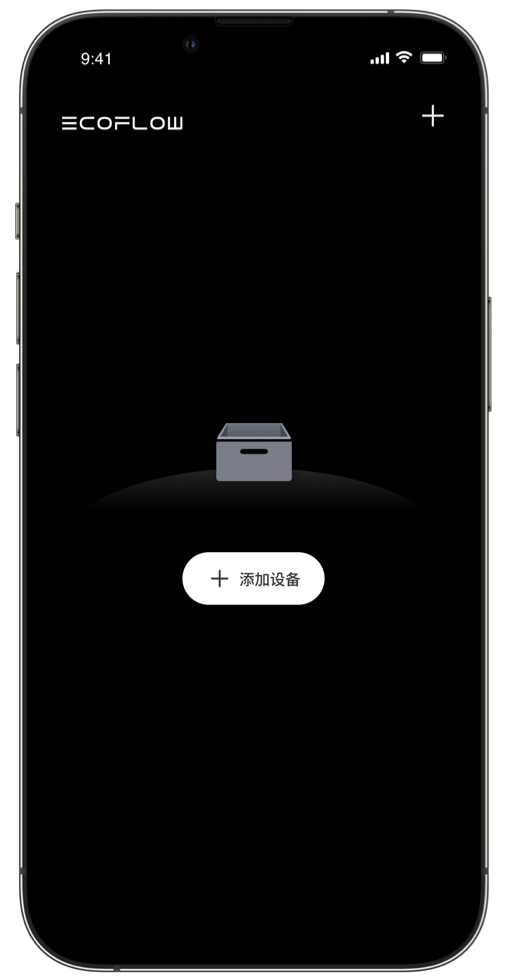
Step 1: Tap the “+” button at the top right of the device page to search for available Bluetooth devices. Only devices that support Bluetooth and are not yet in your device list are shown.
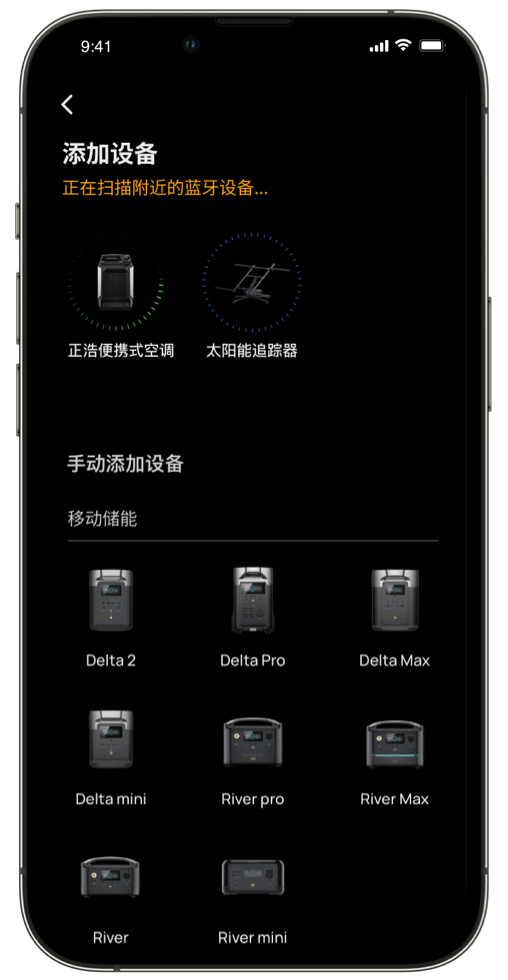
Step 2: Tap the device icon to start pairing.
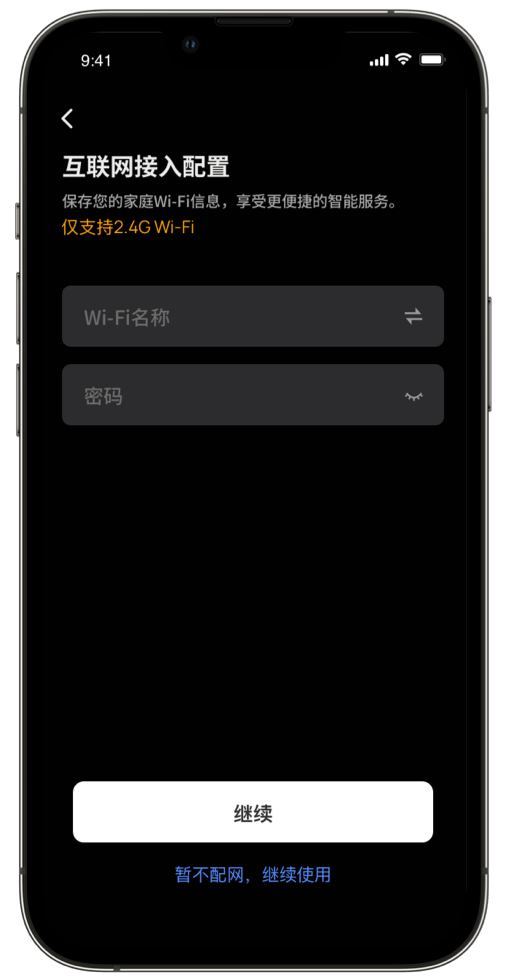
Step 3: Continue with IoT setup, or set it up later.
Note:
• A flashing Bluetooth icon on the device screen means the device is waiting for a connection.
• A solid Bluetooth icon on the device screen means the device is connected.
• Make sure the device is powered on before pairing.